Music Playback
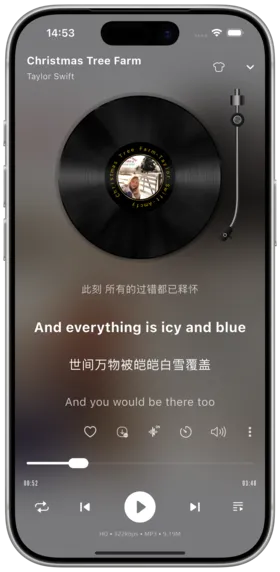
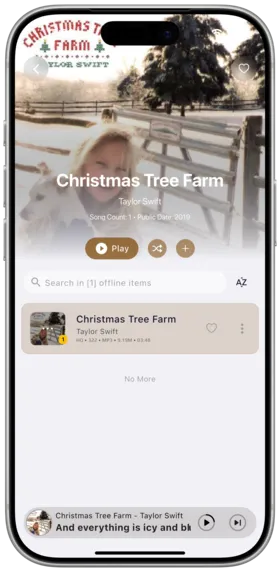
Amcfy Music delivers a professional-grade music playback experience with rich playback controls, multiple playback modes, and high-quality audio settings. This chapter covers all playback-related features.
1. Basic Playback Controls
Overview
Amcfy Music provides complete music playback controls, including play/pause, previous/next track, progress bar seeking, and fast forward/rewind. Controls are located in the central area of the player interface for easy access.
How to Use
- Play/Pause: Tap the play/pause button in the center of the player, or press Space (desktop)
- Previous/Next: Tap the left/right switch buttons; use arrow keys on desktop
- Seek: Drag the slider on the progress bar to quickly jump to any position
- Skip ±5s: Tap the fast forward/rewind buttons; use Shift+Left/Right on desktop
- Gesture Control: Swipe left/right on the mobile player to switch tracks
Notes
- Fast forward/rewind depends on the current buffering state; there may be brief delays during online streaming
- Seek precision depends on the track's total duration — long audio (audiobooks) may have less precise seeking
Use Cases
- Quickly skip to the interesting part of a track
- Rewind to hear a good passage again
- Precise progress control using keyboard shortcuts on desktop
2. Playback Modes
Overview
Amcfy Music supports four playback modes for different listening scenarios.
| Mode | Icon | Description |
|---|---|---|
| Loop | 🔁 | Continue playing from the beginning after the last track |
| Single Loop | 🔂 | Repeatedly play the current track |
| Shuffle | 🔀 | Randomly play tracks from the current list |
| Library Shuffle | 🌐 | Randomly shuffle all songs from the entire library |
How to Use
- Tap the playback mode button in the player to cycle through modes
- The button shows the currently active mode icon
- Default mode can be configured in player settings
Notes
- In shuffle mode, some servers (e.g., Subsonic) may use different shuffle algorithms
- Switching playback mode does not interrupt the currently playing track
Use Cases
- Daily listening: Loop mode
- Hooked on a song: Single loop
- Discovering new music: Shuffle mode
- Full library exploration: Library shuffle
3. Player Interface
Overview
Amcfy Music offers a full-screen player, mini player, and customizable toolbar for an optimized playback experience across different usage scenarios.
Full-Screen Player
Provides an immersive music experience, displaying high-resolution album art, lyrics, playback controls, and song information.
Mini Player
Located at the bottom of the screen, taking minimal space, showing basic information and controls for the current track.
How to Use
- Switch to full-screen: Tap the song title area of the mini player to expand
- Return to mini: Swipe down in the full-screen player or tap the minimize button
- Gesture: Swipe up in full-screen to show the play queue, swipe down to hide
Notes
- The mini player may be hidden in landscape mode; swipe up from the bottom to reveal
- Desktop toolbar customization settings are saved locally and do not sync across devices
Use Cases
- Full-screen: Immersive album art, lyrics viewing
- Mini player: Browse playlists and search while keeping playback controls visible
Notice
Audio quality and bitrate: Max Bitrate, Transcoding
Notice
More playback features: Volume Control, Speed Control, Pitch Control, Sleep Timer, AB Loop
Notice
See detailed pages: Playback Mode, Playback Queue, Track Info
4. Decode Progress
The outer ring on the play button shows decode progress for visual feedback.
Notice
Desktop features: File Association, Drag & Drop
Related Documents
Copyright
License under:Attribution 4.0 International (CC-BY-4.0)