Playlists
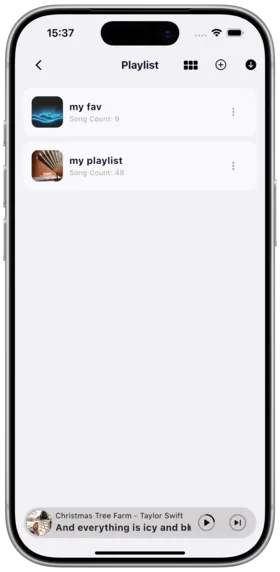
Amcfy Music provides comprehensive playlist management, including creating, editing, importing playlists, and flexible management of the current playback queue.
Create / Edit / Delete Playlists
Description
Users can create custom playlists, edit playlist information (name, description, cover) at any time, and delete playlists no longer needed.
How to Use
Create a Playlist:
- On the playlists page, tap the "New Playlist" button
- Enter a playlist name (required)
- Optional: add a playlist description
- Optional: set a playlist cover image
- Tap "Save" to complete creation
Edit a Playlist:
- Enter the playlist details page
- Tap the "Edit" button
- Modify the name, description, or cover
- Tap "Save"
Delete a Playlist:
- Enter the playlist details page
- Tap the "More" menu
- Select "Delete Playlist"
- Confirm the deletion
Notes
- Deleting a playlist does not delete the songs themselves, only removes the playlist entry
- Deletion is irreversible; proceed with caution
- Playlist covers can be selected from the photo gallery or use a default cover
Use Cases
- Creating mood-based playlists (workout, relaxation, focus, etc.)
- Organizing songs by scenario (commute, party, bedtime, etc.)
- Regularly tidying up and removing unwanted playlists
Add Songs to a Playlist
Description
Supports adding single or multiple songs to existing playlists.
How to Use
Add a Single Song:
- In a song list, tap the "More" menu (three-dot icon) next to a song
- Select "Add to Playlist"
- Choose the target playlist from the popup list
- The song is added to the selected playlist
Add from Player:
- In the player interface, tap the "More" menu for the current song
- Select "Add to Playlist"
- Choose the target playlist
Notes
- The same song can be added to multiple playlists
- If the song already exists in the target playlist, the system prompts whether to add it again
Use Cases
- Adding a favorite song to the corresponding playlist on the fly
- Organizing newly discovered songs into existing playlists
Batch Add to Playlist
Description
Supports selecting multiple songs at once and adding them in bulk to a specified playlist, improving organization efficiency.
How to Use
- On the song list page, tap the "Multi-select" button to enter batch selection mode
- Check the songs you want to add (select all available)
- Tap "Add to Playlist" in the bottom action bar
- Choose the target playlist
- Confirm the addition
Notes
- During batch operations, songs already in the target playlist are skipped by default
- Songs from different albums and artists can be selected simultaneously
Use Cases
- Adding an entire album to a playlist in one go
- Organizing multiple songs from search results
- Batch saving from the current play queue to a playlist
Remove Duplicates from Playlist
Description
Detects and removes duplicate songs from a playlist to keep it clean.
How to Use
- Enter the playlist details page
- Tap the "More" menu
- Select "Remove Duplicates"
- The system automatically detects and removes duplicate songs
- Displays the deduplication result (how many duplicates were removed)
Notes
- Deduplication is based on song ID; different versions of the same song (e.g., live, remix) are not considered duplicates
- After deduplication, the first occurrence of each song in the playlist is preserved
Use Cases
- Cleaning up redundancy caused by multiple additions
- Data cleanup after importing playlists
- Regular playlist maintenance
Import Playlists
Description
Supports importing playlists from external files. Currently supports m3u8 format, with text format planned.
How to Use
Import m3u8 Playlist:
- On the playlists page, tap "Import Playlist"
- Select an m3u8 file
- The system parses the file and displays a preview of the song list
- Confirm import to create a new playlist
Text Format Import (Planned):
- Planned support for importing playlists from plain text files (one song per line in "Song Name - Artist" format)
Notes
- Song paths in the m3u8 file must match file paths on the server
- Imported playlists are local and do not automatically sync with the platform
- If import fails, the system displays the specific error reason
Use Cases
- Migrating playlists from other music players
- Importing curated playlists downloaded online
- Backing up and restoring personal playlists
Current Play Queue Management
Description
Manage the currently playing song queue, including viewing, adjusting, and managing the playback list.
How to Use
- Swipe up on the player interface or tap the playlist icon to expand the current play queue
- View all songs in the current queue
- Long-press a song to drag and reorder
- Swipe left on a song to remove it from the queue
- Tap the "Clear" button to clear the entire play queue
Notes
- The current play queue is temporary and is not preserved after app restart
- To permanently save, add the songs from the queue to a playlist
Use Cases
- Organizing playback order on the fly
- Removing uninteresting songs
- Previewing upcoming songs
Playlist Sorting
Description
Supports sorting songs in a playlist using various criteria.
How to Use
- On the playlist details page or current play queue, tap the "Sort" button
- Choose a sorting method:
- Default order (manual sorting)
- By song name
- By artist
- By album
- By date added
- Shuffle (random order)
- The list is immediately rearranged according to the selected method
Notes
- Manually adjusted order is lost after sorting
- Some sorting methods may affect the playlist's default order
Use Cases
- Grouping songs by artist to listen to one performer consecutively
- Shuffling to rediscover forgotten favorites
- Reviewing recently added songs by date
Quickly Locate Currently Playing Song
Description
In long playlists or play queues, quickly find and jump to the currently playing song.
How to Use
- On the playlist details page or in the play queue
- Tap the "Locate Current Song" button (usually displayed as a location icon)
- The list automatically scrolls to the position of the currently playing song
- The current song is visually highlighted
Notes
- Only available when the currently playing song belongs to the playlist being viewed
- The button is disabled if the song is not in the current playlist
Use Cases
- Quickly finding the current playback position in large playlists
- Checking the context of the current song (what plays before and after)
Copyright
License under:Attribution 4.0 International (CC-BY-4.0)