EQ & Audio Effects
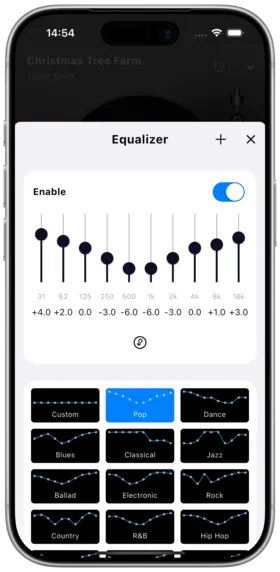
Amcfy Music features a professional-grade equalizer (EQ) and audio enhancement functions to help you tailor the best listening experience to your personal preferences and device characteristics.
1. Equalizer (EQ)
Overview
The equalizer allows you to independently adjust the gain of different frequency bands, changing the audio's frequency response. Amcfy Music features a 10-band graphic equalizer covering the full audible frequency range from 31Hz to 16kHz.
| Band | Frequency | Affects |
|---|---|---|
| Low | 31Hz, 62Hz, 125Hz | Bass and drum thickness and impact |
| Low-Mid | 250Hz, 500Hz | Vocal and instrument warmth |
| Mid | 1kHz, 2kHz | Vocal clarity and instrument presence |
| High-Mid | 4kHz, 8kHz | Brightness and detail |
| High | 16kHz | Airiness and spaciousness |
How to Use
- Go to Settings → Equalizer
- Toggle the master EQ switch on
- Drag each band's slider to adjust gain (range -12dB to +12dB)
- Preview the adjustments in real time
Preset Management
- Select a Preset: Tap the preset name dropdown to choose a built-in preset
- Built-in Presets: Includes "Pop", "Rock", "Classical", "Jazz", "Electronic", "Vocal", "Bass Boost", "Treble Boost", "Custom", and more
- Save Custom Preset: After adjusting, tap "Save as Preset" → enter a name → confirm
- Delete Preset: Swipe left on a preset name in the list → tap delete
- Reset: Tap "Reset" to restore all bands to 0dB
Notes
- Excessive boosting of a band may cause distortion; adjustments within ±6dB are recommended
- The equalizer slightly increases battery consumption
- Different headphones/speakers have different frequency responses; adjust according to your specific device
Use Cases
- Pop Music: Slightly boost lows and highs for enhanced rhythm and clarity
- Classical Music: Keep bands balanced, slightly boost mids for instrument texture
- Electronic Music: Significantly boost lows for added impact
- Compensate for Device: Correct frequency response flaws in headphones or speakers
2. AutoEq Import
Overview
AutoEq is an open-source project providing professional frequency response correction parameters for thousands of headphone models. Amcfy Music supports direct AutoEq parameter import, calibrating your headphones to the Harman target curve for more accurate, balanced sound.
How to Use
- Visit autoeq.app
- Search for your headphone model
- Select a target curve (Harman AE/OE 2018 recommended)
- Export parameters in "Wavelet" or "Graphic EQ" format
- Copy the exported parameter text
- In Amcfy Music, go to Settings → Equalizer → AutoEq
- Tap "Import Parameters" → paste the copied text → confirm
- The equalizer automatically applies the AutoEq configuration
Notes
- Importing AutoEq parameters overwrites current EQ settings; save your current preset first
- Different target curves produce significantly different results; try multiple curves
- AutoEq correction is measurement-based, but individual fit differences may cause slight variations
- Wavelet-format AutoEq parameters are the most accurate; recommended as the first choice
Use Cases
- Quickly calibrate frequency response for a new pair of headphones
- Achieve a consistent listening experience across different headphones
- Compensate for inherent frequency response flaws in headphones
3. Bass Boost
Overview
Bass Boost enhances low-frequency components through digital signal processing, making bass deeper and more powerful. Ideal for electronic, hip-hop, and rock music.
How to Use
- Go to Settings → Equalizer
- Toggle the "Bass Boost" switch on
- Drag the "Boost Strength" slider to adjust (levels 1–10)
- Optionally select "Center Frequency" (40Hz, 60Hz, 80Hz, 100Hz) to control the bass range
Notes
- Bass Boost and EQ can be used together, but excessive stacking may cause distortion
- With regular earphones, overly strong bass boost may exceed driver capabilities and cause crackling
- Prolonged high-intensity bass boost may cause listening fatigue
Use Cases
- Electronic and hip-hop music for stronger rhythmic impact
- Supplement low-end when using open-back headphones
- Enhance music motivation during workouts
4. Audio Format Passthrough
Overview
Audio format passthrough allows Amcfy Music to transmit specific audio formats directly to external decoding devices (such as AV receivers, DACs) for external decoding, preserving all original audio information. Supports Dolby Atmos, DTS, FLAC, and more.
Supported Formats
| Format | Description | Typical Application |
|---|---|---|
| Dolby Atmos | Dolby Atmos | Spatial audio, film scores |
| DTS | Digital Theater System | Multi-channel audio |
| FLAC | Free Lossless Audio Codec | High-resolution music |
| DSD | Direct Stream Digital | SACD-level quality |
| MQA | Master Quality Authenticated | Tidal hi-res streaming |
How to Use
- Go to Settings → Playback → Audio Output
- Toggle "Format Passthrough" on
- Check the audio formats you want to passthrough
- Ensure your external decoding device is properly connected (USB DAC, HDMI, etc.)
Notes
- Format passthrough requires the external device to support decoding of the corresponding format
- If the external device does not support a format, decoding falls back to app-side
- Dolby Atmos passthrough typically requires an HDMI connection
- USB DAC passthrough may disable system volume control; use the DAC device's own volume control
- Wireless Bluetooth connections do not support high-bitrate format passthrough
Use Cases
- Connect to a Hi-Fi system for the best audio quality
- Use an external DAC to decode high-resolution audio
- Connect to an AV receiver via HDMI for surround sound
Related Documents
- Music Playback — Playback controls and settings
- Settings — Complete settings reference
- VIP Features — Amcfy Pro membership benefits
Copyright
License under:Attribution 4.0 International (CC-BY-4.0)