Lyrics Features
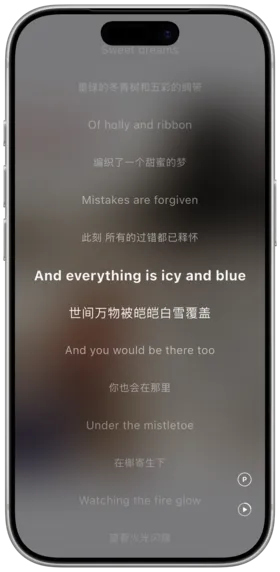
Amcfy Music offers rich and powerful lyrics display features, supporting multi-language lyrics, word-by-word highlighting, karaoke mode, and various display options for an immersive lyrics experience while listening to music.
1. Basic Lyrics Display
Feature Overview
Automatically displays the lyrics of the currently playing song, with auto-scroll following the playback progress. You can also manually drag the lyrics to jump to any position.
How to Use
- Play any song
- The lyrics panel will automatically display the lyrics of the current song
- During playback, lyrics will auto-scroll, and the currently playing line will be highlighted
- Click or drag on the lyrics area to manually jump to any position
Notes
- Some songs may not have embedded lyrics and require an internet connection to fetch them
- If lyrics fail to load for an extended period, check your network connection or try searching for lyrics manually
- After manually dragging, lyrics will resume auto-scrolling after a short delay
Use Cases
- Viewing lyrics while listening to music daily
- Quickly jumping to a specific section when learning a song
- Using as a teleprompter during karaoke parties
2. Multi-Language Lyrics
Feature Overview
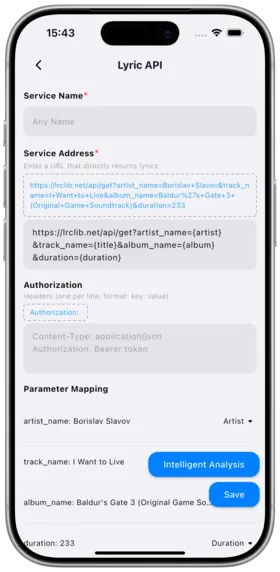
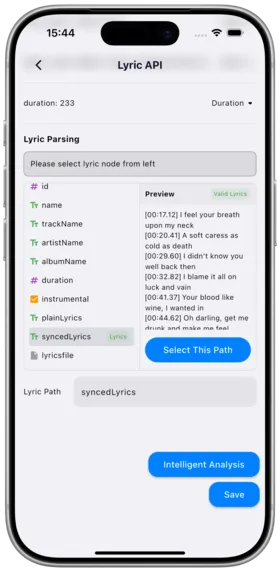
Supports simultaneous display of lyrics in multiple languages, including Chinese translations and original lyrics. When a song has bilingual versions, both the original and translation can be displayed. Lyrics primarily sourced from lrclib.net open lyrics library.
How to Use
- When playing a song, the lyrics panel automatically matches lyrics in the corresponding language
- If bilingual lyrics are available, both original and translation will be displayed
- You can switch display modes in lyrics settings (Original Only / Translation Only / Bilingual)
Notes
- Bilingual lyric availability depends on the lrclib.net lyrics library coverage
- If a language version is unavailable, only the available version will be displayed
- Maintaining a network connection is recommended for the best lyrics matching experience
Use Cases
- Learning foreign language songs with side-by-side lyrics comparison
- Understanding lyrics meaning while enjoying international music
- Comparing differences between language versions of lyrics
3. Word-by-Word Lyrics
Feature Overview
Supports word-by-word lyrics (karaoke style), where each word or syllable is highlighted in sync with the music rhythm, providing precise word-level synchronization. This is currently the most accurate lyrics synchronization method.
How to Use
- Play a song that supports word-by-word lyrics
- Lyrics will automatically display in word-by-word highlighting mode
- The currently sung word is highlighted in a different color
- Previously sung words remain dimmed
Notes
- Word-by-word lyrics require the song to contain word-level time tags; not all songs support this
- If the song doesn't support word-by-word lyrics, it will fall back to line-by-line mode
- Word-by-word lyric data comes from lrclib.net and requires an internet connection
Use Cases
- Precisely following along in karaoke mode
- Learning song pronunciation and rhythm
- Synchronized reference while recording covers
4. Karaoke Mode
Feature Overview
Karaoke mode provides a full-screen immersive lyrics display, suitable for large screen viewing or party settings. Lyrics are displayed in large subtitle format with background visual effects.
How to Use
- Click the karaoke mode button in the lyrics panel
- Enter full-screen lyrics display interface
- Lyrics are displayed in large font centered on screen with word-by-word highlighting
- Click the screen or press ESC to exit karaoke mode
Notes
- Playback controls may be simplified in karaoke mode; keyboard shortcuts are recommended
- Screen orientation can be freely switched between landscape and portrait
- Extended use of karaoke mode may increase device power consumption
Use Cases
- Home karaoke parties
- Large screen lyrics projection
- Teleprompter while recording singing videos
5. Lyrics Settings
Feature Overview
Provides rich personalized lyrics settings, including lyric timing offset adjustment, font size, and lyrics display style.
How to Use
- Go to "Settings > Lyrics Settings"
- Adjust the following options:
- Lyrics Offset: Manually adjust lyrics to play earlier or later when out of sync (±10 seconds)
- Font Size: Adjust the font size of lyrics display
- Display Style: Choose lyrics display style (Fade In/Out / Scrolling / Static Page Flip)
Notes
- Lyrics offset setting applies globally to all songs
- For individual song sync issues, use per-song lyrics offset adjustment instead
- Font size changes may require restarting the lyrics panel to fully take effect
Use Cases
- Personalizing lyrics display appearance
- Fixing lyrics and audio synchronization issues
- Adjusting font size based on viewing distance
6. Mini Player Lyrics
Feature Overview
Lyrics can also be displayed in mini player mode, supporting scrolling lyrics display for convenient lyrics viewing without taking up too much screen space.
How to Use
- Switch to mini player mode
- Click the lyrics toggle button on the mini player
- Lyrics will display in scrolling mode on the mini player
- Click the button again to hide lyrics
Notes
- Mini player lyrics display a single scrolling line by default
- Word-by-word lyrics are not supported in mini player mode
- Lyrics font size is independently set from the main player
Use Cases
- Viewing lyrics while working on the desktop
- Referencing lyrics while using other applications
- Saving screen space while still getting lyrics information
7. Notification Bar Lyrics
Feature Overview
Display the lyrics of the currently playing song in the system notification bar, allowing you to see lyrics content from any interface.
How to Use
- Go to "Settings > Notification Bar Lyrics" and enable this feature
- When playing songs, the notification bar will display the current lyrics
- Pull down the notification bar to view the complete lyrics line
Notes
- Requires granting notification display permissions to the app
- Some system versions may limit notification content length
- This feature may slightly increase battery consumption
Use Cases
- Viewing lyrics while using other applications
- Checking lyrics on the lock screen
- Quickly browsing current lyrics content
8. Lyrics Translation
Feature Overview
Supports automatic translation of foreign language lyrics into your preferred language, helping you understand song content. Translation functionality requires a network connection.
How to Use
- Ensure a stable network connection
- When playing foreign language songs, the lyrics panel will automatically display translations (if available)
- You can toggle translation display in lyrics settings
- Bilingual display mode is supported
Notes
- Translation relies on online translation services and requires a stable network connection
- Machine translation may not be perfect and is for reference only
- Translated content may differ from official translations
Use Cases
- Understanding foreign language song lyrics
- Using as an auxiliary tool for language learning
- Comparing different translation versions
9. Lyrics Visual Effects (Planned)
Feature Overview
Planned lyrics visual effects feature that will add dynamic visual effects to lyrics display, enhancing the lyrics viewing experience.
How to Use
This feature is under development. Stay tuned.
Notes
- Visual effects may increase device power consumption
- Low-performance devices may not support some advanced effects
Use Cases
- Enhancing the visual experience of lyrics viewing
- Creating visual atmosphere matching the music
- Personalizing lyrics display style
10. Global Lyrics Timing Offset
Feature Overview
When lyrics are out of sync with music, you can globally adjust the display timing of lyrics, making them appear earlier or later to ensure perfect synchronization.
How to Use
- Go to "Settings > Lyrics Settings > Lyrics Timing Offset"
- Use the slider to adjust the offset (range: -10s to +10s)
- Positive values: lyrics display delayed
- Negative values: lyrics display earlier
- Changes take effect in real time; you can adjust while listening
Notes
- This is a global setting affecting all songs' lyrics display
- Excessive offset may cause severe lyrics-music desynchronization
- Recommended to fine-tune in 0.5-second increments to find the optimal offset
Use Cases
- Fixing lyrics sync issues caused by audio encoding
- Compensating for audio latency when using Bluetooth headphones
- Unifying lyrics sync experience across different devices
Related Documents
Copyright
License under:Attribution 4.0 International (CC-BY-4.0)