Max Bitrate
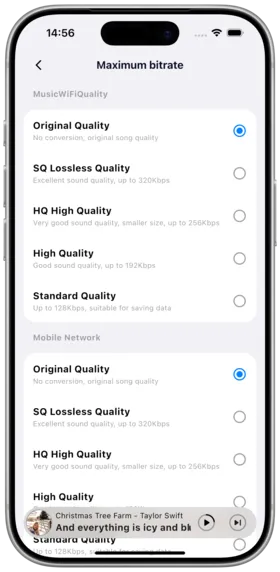
Description
The max bitrate setting allows you to limit the maximum bitrate when streaming audio from the server, adapting to different network environments and data constraints. Amcfy Music supports various audio formats including MP3, FLAC, AAC, OGG, and more.
How to Use
- Go to Settings → Player → Max Bitrate
- Select a transcode strategy:
- Original Format: Direct playback of original server files for the best quality
- Specify Bitrate: Choose a specific bitrate (128kbps, 192kbps, 320kbps)
- Switch by Network: High bitrate on Wi-Fi, low bitrate on mobile data
- The player shows the current track's audio format and bitrate
Mobile Data Protection
- Enable "Mobile Data Warning"
- A data usage alert appears when on mobile data
- Set a separate max bitrate for mobile networks
Android HD Audio
Android enables high-definition audio passthrough by default:
- Dolby Atmos support
- FLAC lossless format optimization
- Audio passthrough avoids secondary processing
Notes
- Transcoding requires server support; some servers (e.g., Plex) transcode automatically, while others need manual configuration
- Lossless formats like FLAC have larger file sizes and may consume significant mobile data
- High-bitrate transcoding increases server CPU load
- Daoliyu, Subsonic, Emby, Plex, and Jellyfin all support max bitrate settings
Use Cases
| Scenario | Wi-Fi Bitrate | Mobile Data Bitrate |
|---|---|---|
| Daily Commute | Lossless | 128kbps |
| Home Hi-Fi | Lossless | - |
| Limited Data | 320kbps | 96kbps |
| In-Car Playback | 320kbps | 192kbps |
| Low-spec Device | Lower bitrate | Lower bitrate |
Related Documents
Copyright
License under:Attribution 4.0 International (CC-BY-4.0)