CarPlay
Description
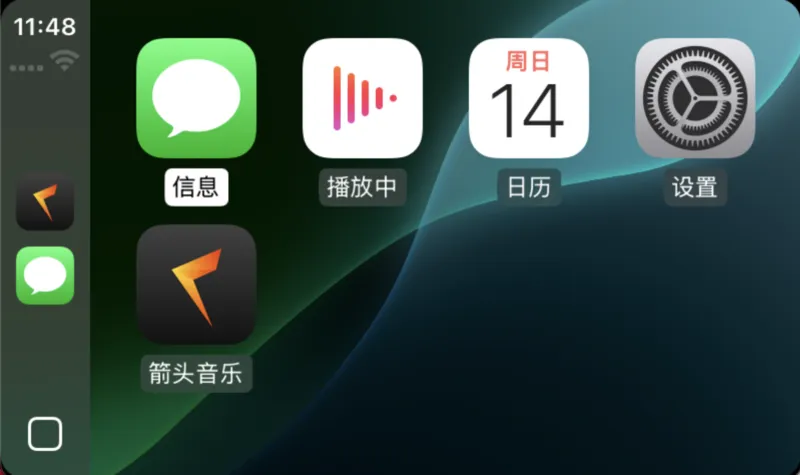
Amcfy Music supports Apple CarPlay, allowing you to control music playback safely and conveniently while driving.
Feature Overview:
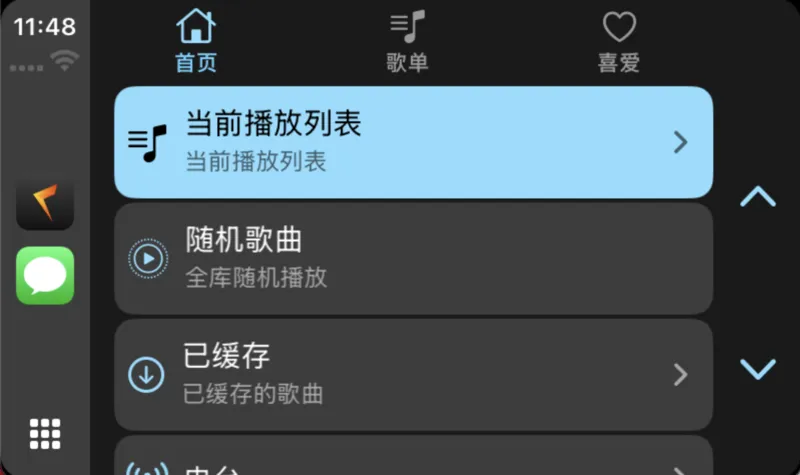
- Display Amcfy Music interface on the car screen
- Browse songs, albums, artists, and playlists
- Control playback (play/pause, next/previous, volume)
- Show currently playing song info and album art
Core Functions
- ✅ Browse songs/albums/artists/playlists
- ✅ Playback controls (play/pause, previous/next)
- ✅ Favorite/unfavorite
- ✅ Playback mode switching (loop, shuffle)
- ✅ Playback speed adjustment and sync
- ✅ Now playing info display
- ✅ Album art display
How to Use
- Connect to Vehicle:
- Connect iPhone to the vehicle's USB port via USB cable
- Or use wireless CarPlay (if supported by the vehicle)
- Launch CarPlay:
- The vehicle screen automatically enters the CarPlay interface
- Find the "Amcfy Music" icon on the CarPlay home screen
- Start Using:
- Tap the icon to enter the Amcfy Music car interface
- Browse the music library and select songs to play
Notes
Warning
Safety First: Only operate complex browsing functions when the vehicle is parked.
- First Connection: iPhone must allow Amcfy Music in Settings → General → CarPlay
- iOS Version: Requires iOS 14.0 or later
- Network: CarPlay uses the phone's network; ensure the server is accessible
- Limited-Time Free: CarPlay is a limited-time free feature (v1.0.20+); may become a VIP benefit later
- Multi-Server: Supports switching between different music servers in CarPlay
Use Cases
| Scenario | Description |
|---|---|
| Daily Commute | Listen to your music library on the way to work |
| Long Drives | Listen to audiobooks or long playlists |
| Family Trips | Share music from NAS with the whole family |
Related Documents
Copyright
License under:Attribution 4.0 International (CC-BY-4.0)