Search
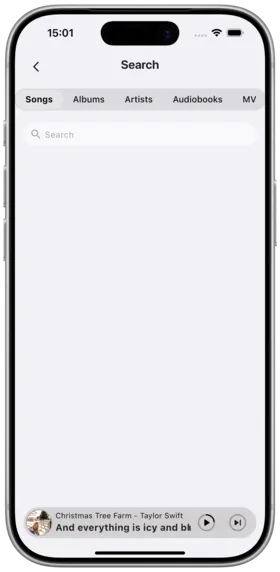
Amcfy Music provides a powerful global search feature, supporting cross-platform search for songs, albums, artists, and audiobooks, along with search history and advanced search capabilities.
Global Search
Description
Global search searches across all connected platforms simultaneously, covering songs, albums, artists, and audiobooks.
How to Use
- On the app home page, tap the search bar at the top
- Enter a search keyword (song name, artist name, album name, etc.)
- The system automatically searches across all connected platforms
- Search results are displayed by category:
- Songs
- Albums
- Artists
- Audiobooks (if connected to platforms like Audiobookshelf)
- Tap any result to enter the corresponding details page or play directly
Notes
- Search speed depends on network conditions and platform response time
- If multiple platforms are connected, results are merged for display
- It is recommended to use accurate names for the best results
Use Cases
- Quickly finding a song you want to listen to
- Discovering all works by a particular artist
- Checking whether a specific album exists on the platform
Search History
Description
Automatically records search history, supports viewing, reusing, and clearing history. Search history is collapsed by default to save screen space.
How to Use
View Search History:
- Tap the search bar to enter the search page
- The "Search History" area appears below the search bar
- Tap the expand arrow to view the complete history
- Tap any history item to search again with that keyword
Clear Search History:
- In the search history area, tap the "Clear" button
- Confirm the clear action
- All search history is cleared
Collapse Search History:
- Search history displays the first few entries by default
- Tap "Expand" to view all entries
- Tap "Collapse" to fold back
Notes
- Search history is saved locally on the device
- Clearing history is irreversible
- History entries are sorted in reverse chronological order (most recent first)
Use Cases
- Repeating frequently used search keywords
- Reviewing previously searched content
- Regularly clearing unwanted search records
Advanced Search
Description
Advanced search is a VIP-exclusive feature that provides finer search filters for precise targeting within vast content libraries.
How to Use
- On the search page, tap the "Advanced Search" button (VIP badge)
- Set filter conditions:
- Content type: Songs / Albums / Artists / Audiobooks
- Year range: Specify a release year interval
- Genre: Filter by music genre
- Platform: Select a specific platform to search
- Sort by: Relevance / Name / Year / Rating
- Tap "Search" to execute the advanced search
- View the precisely filtered results
Notes
- Advanced search requires a VIP subscription
- The availability of filter conditions depends on the data provided by the platform
- Overly strict filter conditions may result in too few results
Use Cases
- Finding music from a specific era by year
- Discovering new music within a specific genre
- Searching only within a single platform to reduce noise
Cross-Platform Search
Description
Searches across all connected server platforms simultaneously and aggregates results, eliminating the need to search each platform individually.
How to Use
- Ensure multiple server platforms are connected (e.g., Navidrome + Emby)
- Enter a keyword in the search bar
- The system automatically sends search requests to all platforms
- Search results are merged and displayed, with each result labeled with its source platform
- Results can be played directly, regardless of which platform they come from
Notes
- All platforms must remain connected
- If a platform search times out, results from other platforms are still displayed normally
- The same song may appear in results from multiple platforms (no deduplication)
Use Cases
- Performing a global search when unsure which platform has a song
- Comparing search results across different platforms
- Maximizing search coverage
Search Tips
Use Exact Search
- Using the complete song name or artist name yields more accurate results
- Avoid overly generic terms
Use Partial Keywords
- If you can't remember the full name, partial keywords can still work
- Example: searching "imagine" can find both "Imagine" and "Imagine Dragons"
Search Scope Recommendations
- Search for songs: enter the song name
- Search for artists: enter the artist name
- Search for albums: enter the album name
- Search for audiobooks: enter the book title or author name
Copyright
License under:Attribution 4.0 International (CC-BY-4.0)