DLNA Casting
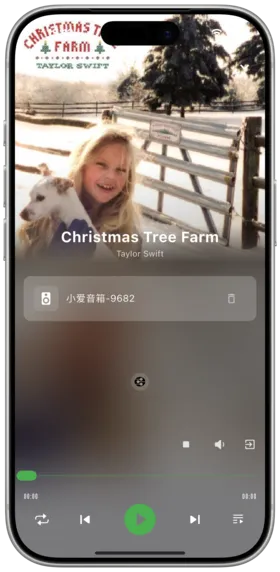
Description
Amcfy Music includes built-in DLNA (Digital Living Network Alliance) casting, supporting wireless music streaming to DLNA-compatible devices on the same network, such as smart speakers, smart TVs, and network streamers.
Feature Overview:
- Discover DLNA devices on the local network
- Stream music to DLNA devices wirelessly
- Control remote device playback (play/pause, next/previous, volume)
- Switch between multiple devices
Supported Devices
| Device Type | Examples | Compatibility |
|---|---|---|
| Smart Speakers | Sonos, Bose, Xiaomi | ✅ Good |
| Smart TVs | LG, Samsung, Sony | ✅ Good |
| Network Streamers | Wiim, Volumio | ✅ Good |
| Game Consoles | Xbox, PlayStation | ⚠️ Test required |
| Other DLNA | Any DLNA DMR-capable device | ✅ Usually compatible |
How to Use
Starting DLNA Casting
- Ensure your phone and the DLNA device are on the same Wi-Fi network
- Open Amcfy Music and enter the full-screen player
- Tap the Cast button in the player interface (usually top-right or near audio effects)
- The app automatically scans for DLNA devices on the LAN
- Select the target device from the device list
- Wait for connection — music will play from the target device
Controlling Casted Playback
After successful connection, you can control in Amcfy Music:
- 🎵 Switch songs (previous/next)
- ⏯️ Play/Pause
- 🔊 Adjust volume
- 📋 Manage playback queue
Disconnecting
- Tap the currently connected device in the device list
- Or turn off the casting feature
- Music will resume playing from your phone
Notes
Warning
Network Requirement:DLNA requires the phone and the casting device to be on the same LAN.
- Network Stability: Weak Wi-Fi signals can cause playback interruptions or delays
- Device Discovery: Some DLNA devices need DLNA functionality manually enabled
- Format Compatibility: Some DLNA devices may not support certain audio formats (e.g., FLAC, DSD)
- Multicast Support: Router must support mDNS/Bonjour multicast protocol
- Firewall: Some router firewalls may block DLNA discovery; allow UDP port 1900
- Latency: 1-3 second control delay during casting is normal
- Sleep Mode: Some DLNA devices cannot be woken from sleep mode
Use Cases
| Scenario | Description |
|---|---|
| Home Audio | Cast music from NAS to the living room audio system |
| Party Playback | Use smart speakers to play party playlists |
| Bedtime Music | Cast to bedroom speaker with sleep timer auto-stop |
| Multi-Room | Whole-house music with multiple DLNA devices (requires device support) |
Notice
See Jukebox Mode for Jukebox details.
Troubleshooting
| Issue | Solution |
|---|---|
| Cannot find DLNA device | Check same Wi-Fi, reboot router, confirm DLNA is enabled on device |
| No sound after connection | Check target device volume, verify format compatibility |
| Playback interruptions | Move closer to router, reduce Wi-Fi interference |
| High control latency | Normal; try switching to 5GHz Wi-Fi |
| Device not appearing | Some devices may need manual IP address addition |
Copyright
License under:Attribution 4.0 International (CC-BY-4.0)