Jukebox Mode
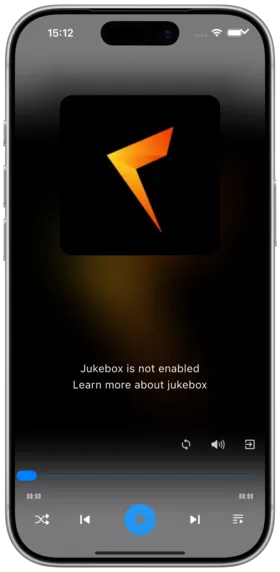
Description
Jukebox mode allows you to remotely control your Subsonic/Navidrome server to directly play music, with audio output handled by the server rather than streamed from your phone. Unlike DLNA casting, audio processing is done entirely server-side.
DLNA vs Jukebox
| Feature | DLNA | Jukebox |
|---|---|---|
| How It Works | Phone pushes audio stream | Server plays directly |
| Control | Phone remote control | Phone remote control |
| Audio Source | Phone transcodes and pushes | Server direct output |
| Scope | Any DLNA device | Subsonic/Navidrome servers |
| Latency | Higher (network transcoding) | Low (server direct) |
| Quality | Depends on transcode settings | Original quality |
How to Use
- Ensure you are using a Subsonic or Navidrome server
- Go to Settings → Player and find the Jukebox option
- Enable Jukebox mode
- Select the server's audio output device
- Play music — audio will output directly from the server
Notes
- Only supports Subsonic and Navidrome servers
- Daoliyu also supports Jukebox, but the app has not yet adapted for it
- The server must have an audio output device connected (speakers, headphones, etc.)
- 📖 See Navidrome Jukebox docs
- In Jukebox mode, you can still control playback from your phone (next/previous, pause, etc.)
- Audio quality is original, unaffected by network transcoding
Use Cases
- Server connected to a Hi-Fi system for direct lossless output
- Use a computer as a server to control living room speakers
- No phone-side decoding, saving phone battery
Related Documents
Copyright
License under:Attribution 4.0 International (CC-BY-4.0)