Connecting to Servers
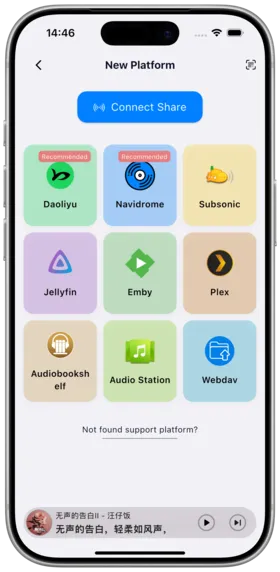
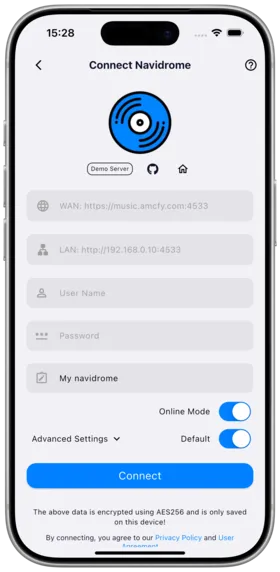
This document provides detailed instructions on how to add, manage, and switch between music servers in Amcfy Music.
Adding a New Server
Step 1: Access Server Management
- Open the Amcfy Music app
- Tap the "Settings" tab in the bottom navigation bar
- Select "Servers" to enter the server management page
- Tap the "+" button in the top-right corner or "Add Server"
Step 2: Select Server Type
From the server type list, choose the type you want to connect to:
- Subsonic / Navidrome / Gonic / LMS: Select "Subsonic" or the specific type
- Jellyfin: Select "Jellyfin"
- Emby: Select "Emby"
- Plex: Select "Plex"
- AudioStation (Synology): Select "AudioStation"
- Audiobookshelf: Select "Audiobookshelf"
- WebDAV: Select "WebDAV"
- Daoliyu: Select "Daoliyu"
Step 3: Fill in Server Information
Common Fields
| Field | Description | Required |
|---|---|---|
| Server Name | Custom name to distinguish between multiple servers | ✅ |
| Server Address | The server's URL address | ✅ |
URL Format
URL format requirements for different platforms:
| Platform | URL Format | Example |
|---|---|---|
| Subsonic | http(s)://domain:port | https://music.example.com:4533 |
| Navidrome | http(s)://domain:port | http://192.168.1.100:4533 |
| Jellyfin | http(s)://domain:port | https://jellyfin.example.com:8096 |
| Emby | http(s)://domain:port | http://192.168.1.100:8096 |
| Plex | http(s)://domain:port | https://plex.example.com:32400 |
| AudioStation | http(s)://domain:port | https://nas.example.com:5001 |
| Audiobookshelf | http(s)://domain:port | http://192.168.1.100:13378 |
| WebDAV | http(s)://domain:port/path | https://nas.example.com:5006/dav/music |
| Daoliyu | http(s)://domain:port | http://192.168.1.100:8080 |
Tips
When entering the address, do not include API path suffixes like /rest — the app will append them automatically.
Step 4: Configure Authentication
Choose the appropriate authentication method based on your server type:
Authentication Methods
Username + Password
Applicable to: Subsonic, Navidrome, Gonic, AudioStation, Audiobookshelf, Daoliyu
- Select "Username + Password" as the authentication method
- Enter the username created on the server
- Enter the corresponding password
- Tap "Test Connection" to verify
API Key
Applicable to: Jellyfin, Emby
How to Get a Jellyfin API Key
- Log in to the Jellyfin web interface
- Go to "Dashboard" → "API Keys"
- Tap "+" to create a new API Key
- Enter an app name (e.g., "Amcfy Music") and confirm
- Copy the generated API Key
- Enter the API Key in Amcfy Music to complete authentication
How to Get an Emby API Key
- Log in to the Emby web interface
- Go to "Settings" → "API Keys"
- Create a new API Key
- Copy the key and use it in Amcfy Music
OAuth2
Applicable to: Plex
Plex OAuth2 Login
- Select "Plex" as the server type
- Authentication method is automatically set to "OAuth2"
- Tap the "Sign in with Plex" button
- You will be redirected to the official Plex login page
- Enter your Plex account credentials
- Authorize Amcfy Music to access your account
- After successful login, you will be returned to the app
- Select the Plex server you want to connect to (if you have multiple)
Testing the Connection
After filling in server information and authentication details, it's recommended to test the connection first:
- Tap the "Test Connection" button
- Wait for the connection test to complete
- Success: A ✅ green indicator appears
- Failure: A ❌ red indicator appears with the error reason
Common Connection Failure Causes
| Error Message | Possible Cause | Solution |
|---|---|---|
| Cannot connect to server | Incorrect address or server not running | Check the URL and verify the server is running |
| Connection timeout | Network unreachable or firewall blocking | Check network connection and verify the port is not blocked by firewall |
| Authentication failed | Incorrect username or password | Verify credentials and ensure account is not disabled |
| SSL certificate error | Self-signed certificate not trusted | Use HTTP connection, or trust the certificate on your device |
| 404 Not Found | Incorrect URL path | Check if extra path suffixes like /rest were added |
| Protocol not supported | Server version too old | Upgrade the server to the latest version |
Multi-Server Management
Amcfy Music supports adding multiple servers simultaneously, making it easy to switch between different music libraries.
Adding Multiple Servers
Repeat the steps above to add multiple servers. Each server's configuration is saved independently.
Switching Servers
- Go to "Settings" → "Servers"
- In the server list, tap the server you want to switch to
- The app automatically switches to the selected server and loads its music library
Setting a Default Server
- In the server list, long-press or swipe left on the target server
- Select "Set as Default"
- The app will automatically connect to the default server on startup
Editing a Server
- In the server list, tap the edit button next to the server (or swipe left and select edit)
- Modify the server name, address, or authentication information
- Tap "Save"
Deleting a Server
- In the server list, swipe left on the target server
- Tap the "Delete" button
- Confirm the deletion
Warning
Deleting a server does not affect data on the server itself; it only removes the connection configuration from the app.
LAN/WAN Auto-Switch
Amcfy Music supports configuring both LAN (Local Area Network) and WAN (Wide Area Network) addresses for the same server, automatically switching based on network environment.
How to Use
- When adding or editing a server, enable "LAN/WAN Auto-Switch"
- Enter the "LAN Address" (e.g.,
http://192.168.1.100:4533) - Enter the "WAN Address" (e.g.,
https://music.example.com:4533) - Save the configuration
How It Works
- When the device is connected to home Wi-Fi, the LAN address is used automatically (faster, no data usage)
- When the device uses mobile data or external Wi-Fi, it automatically switches to the WAN address
Use Cases
- Access your music library at high speed via Wi-Fi at home
- Access via public network/DDNS when away from home
- No manual address switching needed — fully automatic
Server Status Monitoring
Amcfy Music provides server connection status monitoring.
Viewing Server Status
- Go to "Settings" → "Servers"
- Each server displays a connection status icon on the right:
- 🟢 Green: Connected, normal
- 🟡 Yellow: Connecting
- 🔴 Red: Connection failed
- ⚪ Gray: Not connected
Auto-Reconnect
When the network recovers or the server comes back online, Amcfy Music will automatically attempt to reconnect. No manual intervention is needed.
Demo Server
If you want to quickly try out Amcfy Music but don't have your own server yet, you can use the demo server.
How to Use
- Go to "Settings" → "Servers" → "Add Server"
- Select "Demo Server"
- The app will automatically fill in the demo server's address and account
- Tap "Connect" to start exploring
Warning
- The demo server is for trial purposes only; data is periodically reset
- Playback may be affected by server load and network conditions
- Do not upload personal music to the demo server
Share Connection
Amcfy Music supports sharing server connection configurations with other users, making it easy for family or friends to quickly set up.
Sharing a Server Connection
- Go to "Settings" → "Servers"
- Long-press the target server and select "Share Connection"
- The system generates a share link or QR code
- The recipient can scan the code or tap the link to auto-configure
Warning
- The shared configuration does NOT include the password; the recipient must enter it manually
- For API Key authentication, the shared configuration does not include the key
- It is recommended to use this feature only in internal networks or trusted environments
Complete Troubleshooting Guide
Cannot Connect to Server
- Check if the server is running: Verify the server program is active
- Check the port: Confirm the port number is correct (see common ports in the URL format table above)
- Check the firewall: Ensure the server port is not blocked by a firewall
- Check the network: Confirm your phone and server are on the same network (LAN) or the server has public network access configured
- Try using an IP address: If the domain name cannot be resolved, try using the IP address directly
Slow Connection Speed
- Enable LAN/WAN auto-switch to use the LAN address at home
- Check the server's network bandwidth
- Enable transcoding on the server side to reduce data usage
- Adjust the app's cache size settings
Frequent Disconnections
- Check Wi-Fi signal strength
- Disable the phone's power-saving mode (may restrict background network)
- Check if the server has connection limits
- Try reducing the number of concurrent requests
Security Recommendations
- Use HTTPS: Always use HTTPS encrypted connections in public network environments
- Reverse Proxy: It is recommended to expose services through reverse proxies like Nginx or Caddy
- Strong Passwords: Use complex passwords and change them regularly
- API Key Management: Rotate Jellyfin/Emby API Keys periodically
- VPN Access: For servers not directly exposed to the public internet, access via VPN is recommended
- Firewall Rules: Restrict the IP ranges that can access the server
- Log Auditing: Regularly review server access logs and address anomalies promptly
Copyright
License under:Attribution 4.0 International (CC-BY-4.0)