Settings
Description
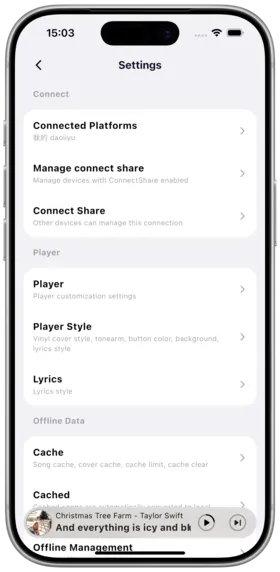
Amcfy Music offers extensive settings options, allowing you to deeply customize the app's appearance, audio quality, and interactive behavior according to personal preferences.
General Settings
Language
- Supports 14 languages: English, 简体中文, 繁體中文, 日本語, 한국어, Deutsch, Français, Español, Português, Italiano, Polski, Suomi, Русский, Čeština
- In-app switching without changing system language
How to Use: Settings → Language → Select target language
Notes: Some interfaces need reloading after language switch
Theme
- Dark mode
- Light mode
- Follow system
- Manual theme color switch
How to Use: Settings → Theme → Select mode
Use Cases: Use dark mode at night to protect eyes, light mode during the day for better readability
Navigation Customization
- Customize bottom navigation bar menu items
- Adjust menu order and visibility
How to Use: Navigation last item "Settings" → Navigation Customization
Homepage Customization
- Add/remove/reorder modules on the homepage
- Includes: Recently Played, Random Songs, Random Albums, Audiobooks, Artists, AI Recommendations, etc.
How to Use: Tap "Customize Homepage" at the bottom of the homepage
Player Settings
Playback Mode
- Exclusive Playback: Amcfy Music exclusive audio output
- Smart Avoidance: Automatically lower volume when other audio plays
- Mixed Playback: Mix output with other app audio
Landscape Mode
- Force landscape mode, suitable for car and desktop use
Player Toolbar
- Customize full-screen player bottom toolbar buttons
Mini Player
- Mini player size adjustment (drag to resize)
- Mini player position customization
- Mini player lyrics display toggle
- Mini player background blur
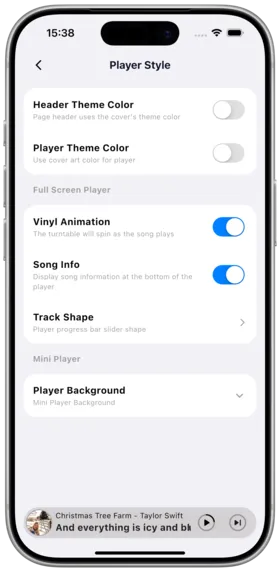
Player Skin
- Custom player background
- Blur effect settings
- Vinyl record effect
- Waveform display
Track Transition
- Animated transition effect between tracks
Audio Quality Settings
Transcoding
- Set transcode format (MP3, AAC, OGG, etc.)
- Maximum bitrate limit
- Mobile data usage limit
How to Use: Settings → Audio Quality → Select format and bitrate
Notes:
- Transcoding consumes server resources; use original format on local network
- Set lower bitrate on mobile data to save bandwidth
Android HD Audio
- Android HD audio format passthrough enabled by default
- Dolby Atmos, FLAC and other format optimizations
Network Settings
- Mobile data usage warning
- Ignore self-signed SSL certificate verification
- IPv6 address support
- Auto-switch between Wi-Fi and mobile data
Cache Settings
- Cache size limit
- Clear cover cache
- Clear song cache
- Clear download cache
Lyrics Settings
- Global lyrics timing offset
- Lyrics font size
- Lyrics display style
- Bilingual lyrics display
- Lyrics translation
Other Settings
CarPlay
- Settings → CarPlay configuration
Resolution
- Modify display resolution at the bottom of the homepage
File Association
- Enable file association open feature
iOS Shortcuts
- Configure Siri shortcuts
System Logs
Path: Settings → About → Logs
Description
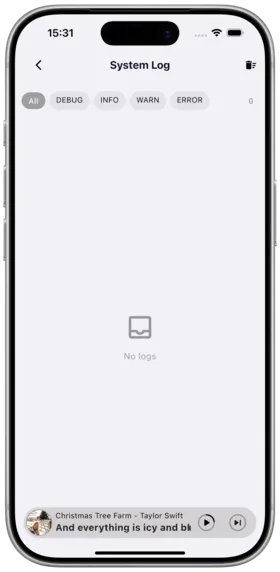
System logs record the app's runtime status and error information for troubleshooting.
How to Use
- Go to Settings → About → Logs
- View recent runtime logs and error records
- Submit logs to developers for analysis when encountering issues
Notes
- Logs only contain app runtime information, not music content data
- Attaching logs when submitting bugs helps quickly identify issues
Copyright
License under:Attribution 4.0 International (CC-BY-4.0)